Guides
Labs
Newer ideas in the app, on by default; Settings → Labs turns them off.
Labs holds ideas that are still being tried: the harbour home, agents as conversations, zen, and worktrees side by side. They are on by default since v0.3.1, and may change or go away. Settings → Labs turns them off, and that choice is kept. Agents in chat aren't one of them: agents run in chat wherever the box can, whether Labs is on or off.
Harbour home
With no worktree open, the workspace is one composer (Labs or not): what should your agents work on, on which project and box, in a new worktree or the main checkout. Below it is your grid of widgets: who needs you, who is working, what just finished, pull requests, your boxes, whatever you put there. An empty worktree has a composer that starts an agent right there. Labs adds the harbour above them: a painting of the harbour dissolving into the page, in a halftone grain, at night in a dark theme, smaller in an empty worktree. Settings → Appearance → Header picture swaps it for another painting or a picture of your own, or turns it off.
The harbour is Home, the first place in the sidebar. Without Labs that place is the Agent Dashboard; with Labs the dashboard moves under More (⌘J still opens it, as does Dashboard on the harbour).
Model picker
The composer's agent picker chooses the agent and, where its CLI takes
them, the model and effort (Claude Code's opus, sonnet and haiku, and
its effort levels; Codex's reasoning effort). Default is the CLI's own
default. Pick one and it is a task; pick several agents, one model against
another, or ×2 of each, and it starts attempts,
each with its own model. Which models are offered is set per agent: see
models and effort.
Conversation view
Agent panes get a Terminal | Conversation switch. The conversation is the agent's own transcript as a calm list: what you asked, its replies, tool calls folded into groups ("Read 5 files"), edits with line counts, and the helpers it sent out, which also show as Crew in the floating panel.
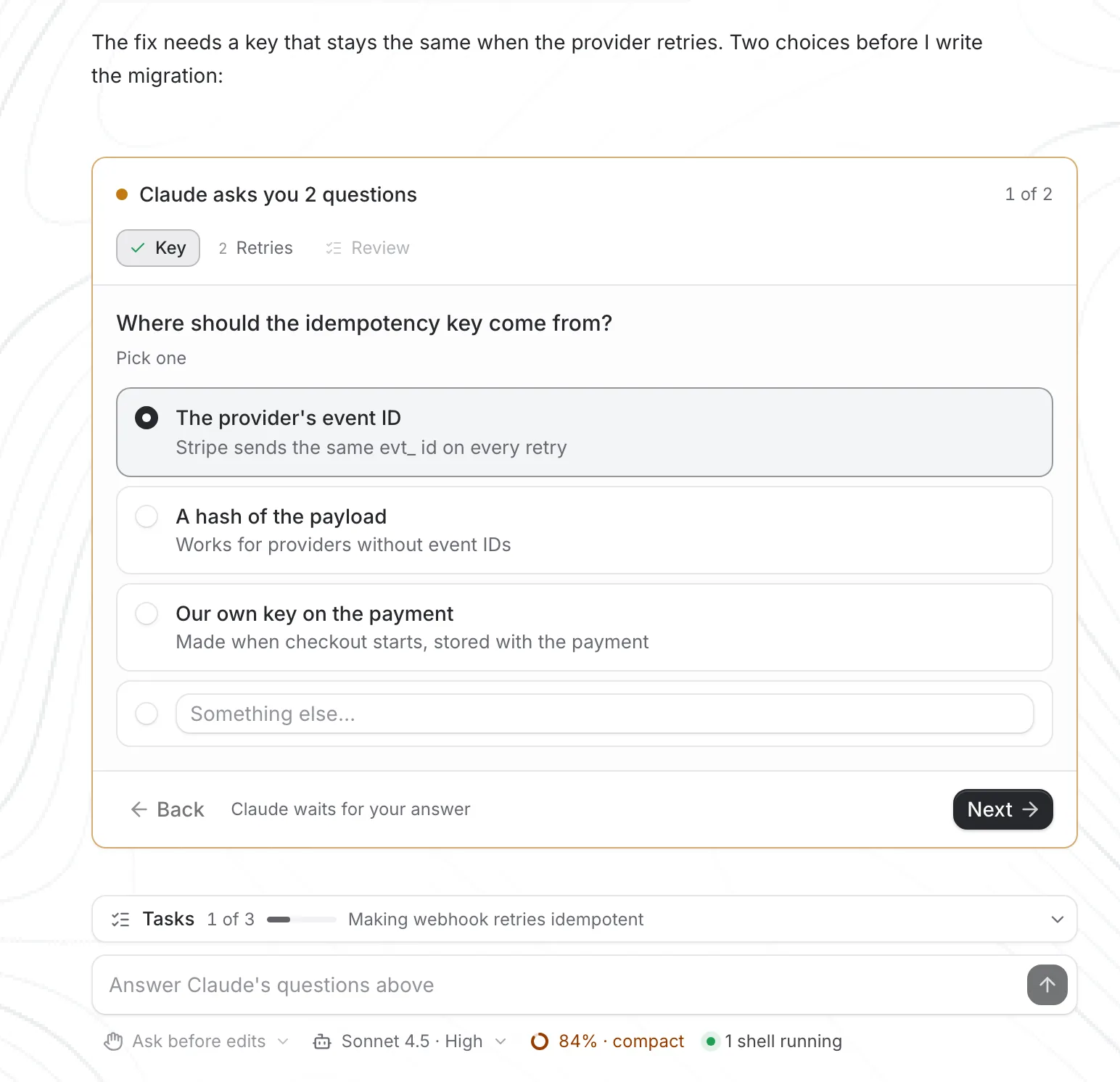
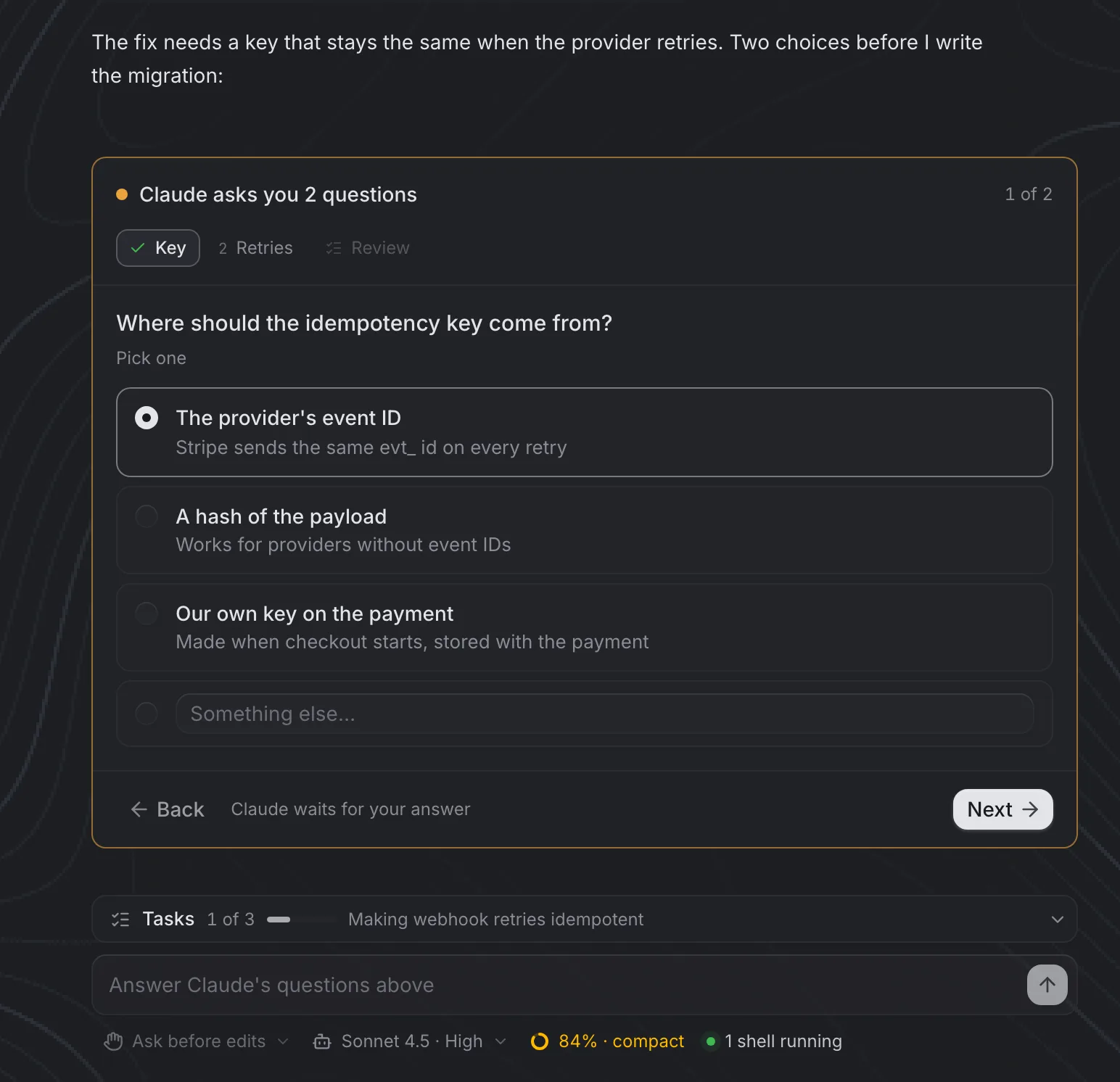
When Claude asks with its own form (AskUserQuestion, one to four questions at once), the chat shows the whole form: each question with its options, one pick or several, room for your own words, Back and Next, and a review with Submit. The box fills in Claude's form key by key, checking its screen as it goes; if anything doesn't match, it stops and Claude's screen opens under the chat to finish there. Answers stay in the conversation as what you picked. Another agent's question shows as buttons for its options, and answering types the option into the agent.
A permission reads from Claude Code's own hook ("Claude wants to
run pnpm test", with its reason), with Allow, Always allow when the
agent offers it, and Deny, matched to the options on its screen; agents
without hooks fall back to reading the screen.
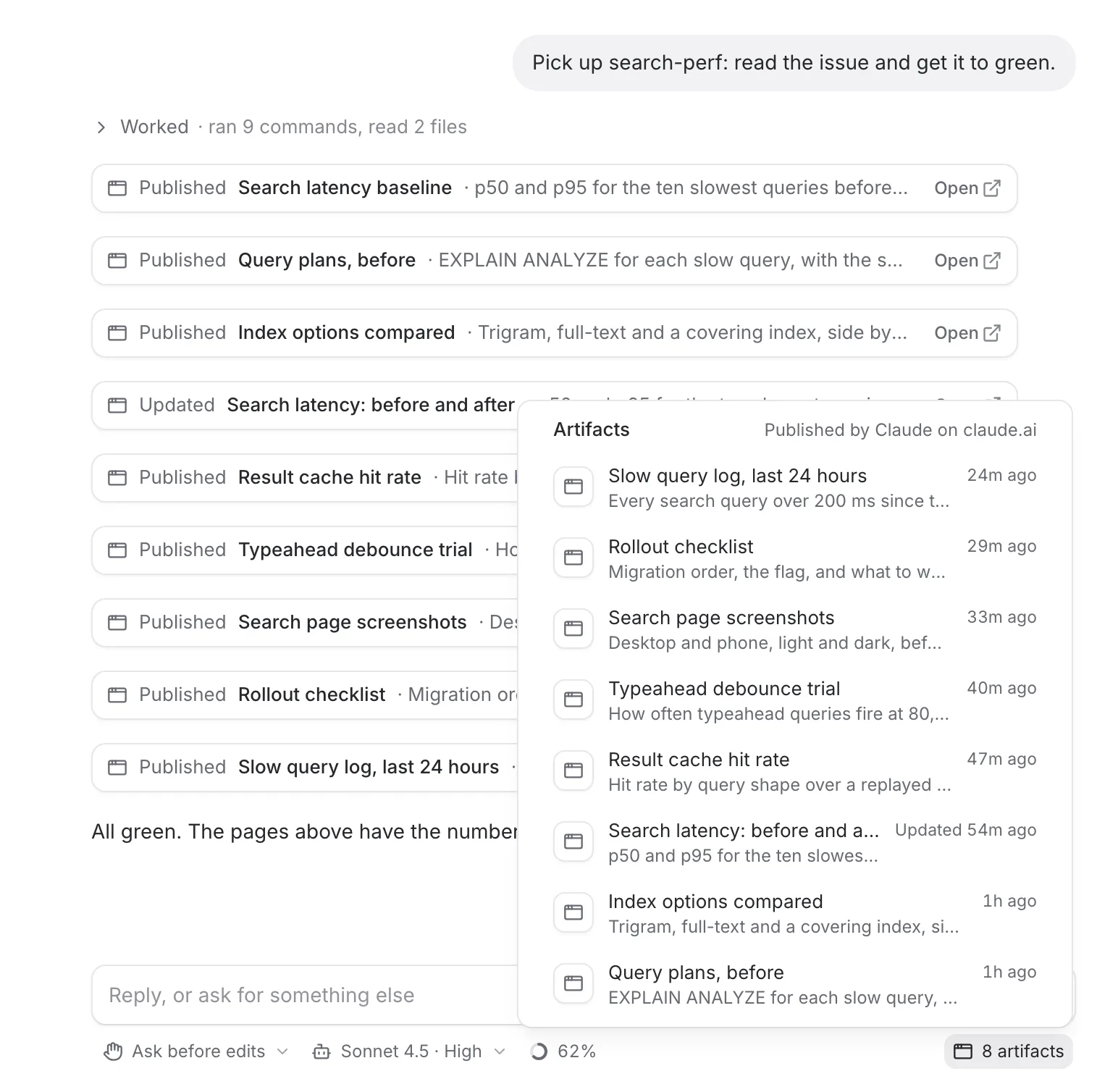
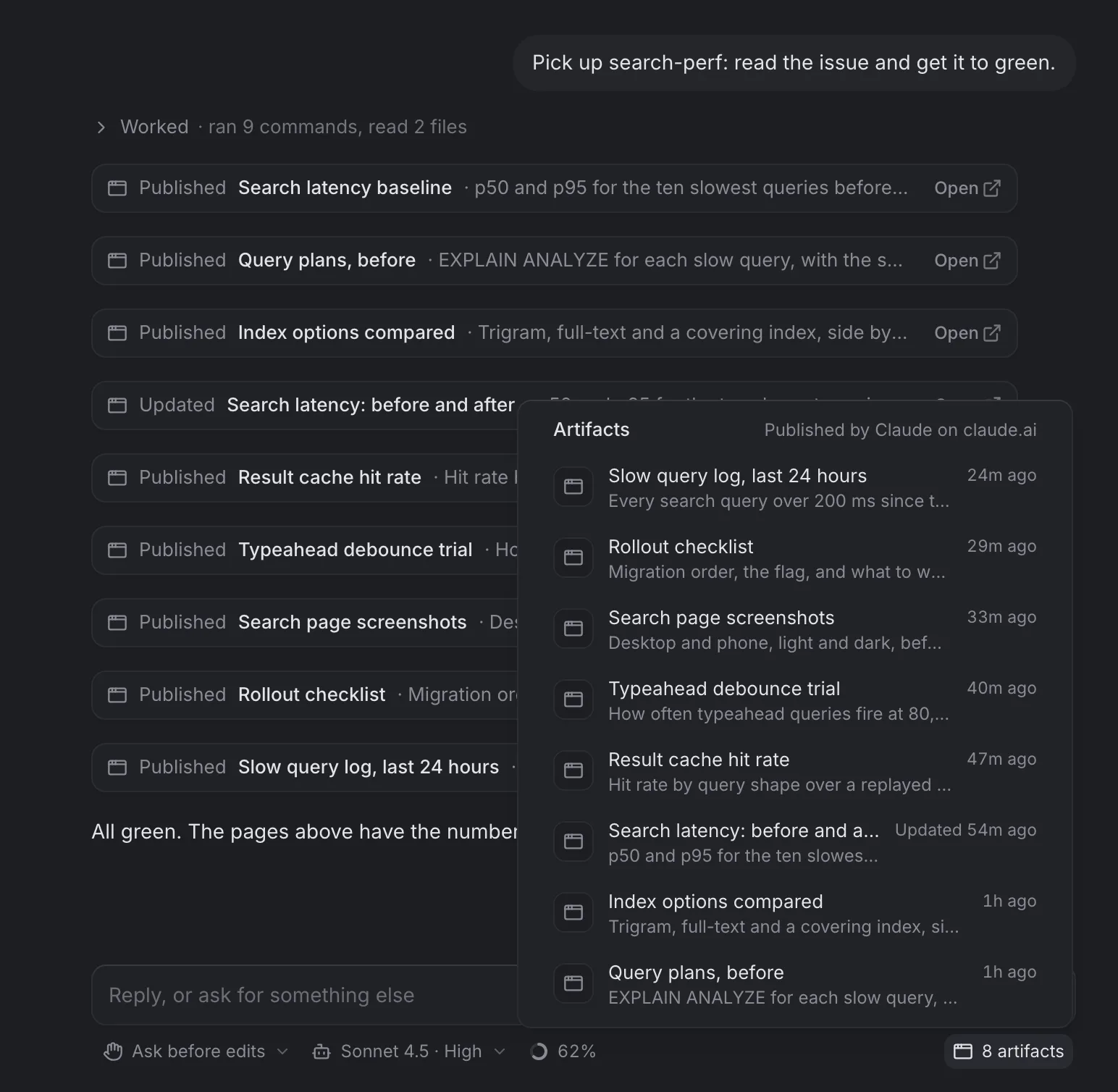
A page Claude publishes on claude.ai with its Artifact tool shows as a card where it happened, with Open. A chip at the right of the reply box's controls ("8 artifacts") lists them all, newest first: open one, copy its link, or show it in the chat. A page published again is marked Updated.
Messages to the agent that you didn't type read as what they are. Claude Code hands each of them to the model as if it were a prompt; the chat doesn't:
- Another agent's message is a card: the sender's avatar in its own colour, its name and kind (Helper, Teammate, Lead, Session), what kind of message it is (Report, Question, Update, Instruction, Failed), how long it took, and "↵ to Claude" (its tip says you didn't type it). Open opens a helper's conversation in a tab. A report shows its heading and gist, and Read report unfolds the whole of it in place; one longer than a screen offers Open in tab (or the full report in a sheet).
- A question from a teammate or another session is marked needs you until Claude answers it or you write, and the Crew strip counts it. Reply puts it in the reply box as a quote, with "Reply to sender:" after it, for Claude to pass on.
- Claude Code's pings about background work are one line: "✓ Run the billing tests completed", "✕ Fix retry tests failed · ×2". Successes that came together fold into one ("✓ 3 finished", open to each); a failure always shows. A helper's own "finished" notice folds into its report.
- A message you sent while Claude worked is your bubble, marked "Sent
while Claude was working". Claude Code's
<system-reminder>notes never show.
Teammates (Claude Code's agent teams) join the Crew strip once they have written, and a helper that reported back has a Report badge that brings its report into view. Shipyard's own reports (see hearing back) take the same head. This needs a box from this release; an older box shows these messages as it did. Codex's helpers answer through a tool call, so there is nothing of this kind in a Codex chat.
An edit opens to the file's current diff in the worktree (folded until you open it), with Open in Review. Hover a line to comment on it; comments also work in Review, and Send to agent sends them as one short prompt (each file and line with your note, never the code around it) that waits until the agent is idle. Comments are kept on this Mac per worktree until they are sent or dismissed.
The reply box says what Enter does: Send, or Queue while the agent
works. A queued reply shows under the conversation ("Queued: sends when
Claude finishes") until the box types it in, with Send now (it asks
first if the agent is waiting on you) and Cancel. Shipyard reads Claude Code's and Codex's transcripts on the box
(GET /v1/sessions/{name}/transcript); for other agents, or on an older
box, the pane says so and offers the terminal. Settings → Labs chooses
which view the panes of agents in their terminals open in; an
agent in chat always opens as its
conversation, Labs or not.
Chat controls
Under the reply box sits what you would otherwise read off the agent's terminal, so the chat can stand in for it:
- Stop (or Esc in the reply box) while the agent works presses Esc for it, as at its terminal. The box waits for the agent to stop, ends the turn (Claude Code's hooks say nothing on an interrupt) and the chat shows Interrupted, with Continue.
- Permission mode: Ask before edits, Accept edits, Plan, Auto, or Bypass permissions (in red) for Claude Code; Codex's approval policy. Switching presses Shift+Tab until the agent's screen shows the mode, and is refused while it waits on a question (Shift+Tab there would pick an option). Bypass is only offered by a session started allowing it.
- Model and effort, from the agent's last answer. Picking one types
/modelor/effort; if Claude Code asks to confirm, its own screen shows inline, and the chip says "Switching…" until Claude Code says it switched. Claude Code also makes the choice its default for new sessions. - Context: how full the agent's context is ("62%"), from its last
answer's token use against its model's window (Codex reports its own).
Above 80% it turns amber and offers Compact (
/compact, queued if the agent is working). - Background work: "1 shell running" for shells started with
run_in_backgroundand monitors. Open it to see each one's command and its output so far, read from the agent's output file as it grows; finished ones stay a few minutes.
The agent's task list (Claude Code's TodoWrite or TaskCreate/TaskUpdate, Codex's plan) docks above the reply box as a checklist that ticks off in place, with counts; it folds once all is done and can be put away.
Errors are never silent. API errors, usage and rate limits (with when they reset), a sign-in that expired, failed hooks, a turn that ended on an error (Claude Code's StopFailure), and an agent whose program ended mid-work each show as a card with one next step: Try again, Log in at the terminal, Show terminal or See why. A request being retried shows as one line that updates. A limit shown only on the agent's screen is read from there.
These need a box with the controls capability (berthd from October 2026):
POST /v1/sessions/{name}/interrupt, …/mode, …/keys and
GET …/controls; the transcript's signals carry the rest.
History
A chat holds its last 300 items; scroll up and the earlier turns load a page at a time (Load earlier messages above them, Start of the conversation once there are no more), leaving what you were reading where it was. Only the rows near the view are drawn, so a chat thousands of items long opens and scrolls as fast as a short one. A chat hidden for a minute lets its earlier turns go; scrolling up reads them again.
- Helpers' own chats. Click a helper in Crew, or its name under "Sent out 2 helpers", and its conversation opens in a sheet beside the chat, read-only and drawn the same way: what the agent asked it, its steps folded, each call opening to what it ran and printed. Its siblings are tabs at the top; a working helper updates as it goes.
- Earlier prompts. In an empty reply box, ↑ and ↓ go back and forth through the prompts you sent, newest first, as at a terminal.
- Find. ⌘F with the chat focused finds words in prompts, replies and steps' targets, folded steps included (they open to the match). ↵ goes to the older match, ⇧↵ to the newer, Esc closes it. A terminal pane keeps its own ⌘F.
- Edit and resend, fork, rewind. Hover a prompt you sent:
- Edit and resend puts its words back in the reply box.
- Fork from here starts a new Claude Code in the same worktree with everything said before that prompt, sends the prompt (as you edit it) and opens it as a tab, "Fork of …". The original is untouched.
- Rewind to here, while Claude Code is idle, takes it back to before
that prompt with its own
/rewind: just the conversation, or the code too. The prompt comes back to the reply box to edit and send again.
Fork and rewind work with Claude Code. Claude Code only cuts a resumed
conversation short in print mode, so a fork is a copy of its record up to
that prompt, resumed. Rewind drives /rewind on the agent's screen, moving
up its list and checking the highlighted prompt at each step; anything
unexpected (text typed in its prompt, a list that doesn't show the prompt)
backs out with Esc and says why. These need a box with the history
capability: GET …/transcript?before=, GET …/subagents (and each one's
…/transcript and …/tool/{id}), POST …/fork and POST …/rewind.
Commands in the chat
The reply box (and the first-prompt composer) takes everything the agent's own prompt does, typed exactly as you type it:
/at the start lists the agent's commands, fuzzy-matched as you type, each with what it is: Built-in (/model,/compact,/context,/usage…, with aliases such as/cost), Custom (.claude/commandsin the repo and in~/.claude), Skill (.claude/skills) and Plugin (enabled plugins' commands and skills,/vercel:deploy). For Codex, its own commands and~/.codex/prompts(/prompts:name). ↑↓ move, Enter or Tab puts the pick in the box, Esc closes; a command typed in full sends on Enter.@lists the worktree's files (what git tracks, plus new files it doesn't ignore); the pick goes in as@path.!runs the rest in the agent's shell, and a badge on the box says so. Claude Code 2.1 has no#memory shortcut, so a#line goes as a prompt and the badge says that;/memoryedits memory.
What a command prints shows in the chat: a one-line answer as a line under
it ("/model ↳ Set model to Sonnet 5.5 for this session only"), longer output
as a card (/context as Claude Code's own table, !ls as its output), and
/clear as a divider where the fresh conversation starts. A skill or custom
command reads as what you asked, followed by the agent's answer.
When the agent shows a screen of its own that the chat can't draw (the
/model picker, /config, /resume, /permissions, /login, the usage
dialog, a trust or update prompt at start), its live terminal opens
inline under the conversation: "Claude Code is showing its own screen —
answer it here". It takes the keyboard, so arrows, Enter and Esc go straight
to the agent, and it folds away once the agent is back at its prompt (or
fold it yourself; the reply box waits until then). Shipyard spots such a screen
from the agent's screen while it isn't asking a question its hooks describe:
key hints at its foot ("Esc to cancel", "Enter to confirm"), numbered
options, or no prompt where there always is one at rest. Only one terminal
is attached per pane, and only while it shows.
The agent's own commands (/cost, /model, !ls…) start no turn, so they
never hold up a queued prompt or a berth session send --wait. These need a
box with the commands capability: GET /v1/sessions/{name}/commands
(cached a minute, capped at 600) and GET …/files?q=. MCP servers' prompts
aren't listed: the agent reads them from each server once it starts.
Zen
⌘. puts everything but the agents away: no sidebar, tab strip or status bar, and agents open as conversations. One small switcher at the top left shows where you are. It lists the sidebar's places in the sidebar's order (Home, Review, Worktrees, Automations and More, however you arranged them), then your agents (who needs you first), then worktrees, then Search, Keyboard shortcuts, Settings and Leave zen. ⌘K searches everything. ⌘. again brings it all back, and the app remembers which you left it in. In the Mac app, Zen is also under View in the menu bar.
Worktrees side by side
Two worktrees can share the window: their tabs in one strip, and their panes in one tab. Nothing changes until a second worktree joins, so with one open the app looks as it always has.
Tab groups. ⌥-click a worktree in the sidebar, choose Add to tabs beside… in its menu, drag it onto the tab strip, or pick Another worktree's tabs… from the strip's +. Its tabs join the strip as a group: its name first, in its colour, then its tabs, underlined in that colour. The group in front has the solid label. A plain click on a worktree whose group is in the strip brings that group forward; a plain click on any other shows it alone, as before.
One tab, two worktrees. ⌘⌥D (Split right with another worktree…, also in a pane's ⋯ menu) picks a worktree, then what of it to show beside the focused pane: one of its agents, its dev server's page, a panel such as its Diff, or a new terminal or agent. Drag a worktree from the sidebar onto a pane's edge to split its agent in, or drop a tab from another group into a pane. Each pane in such a tab wears a chip with its worktree's name and colour, and the focus line takes that colour.
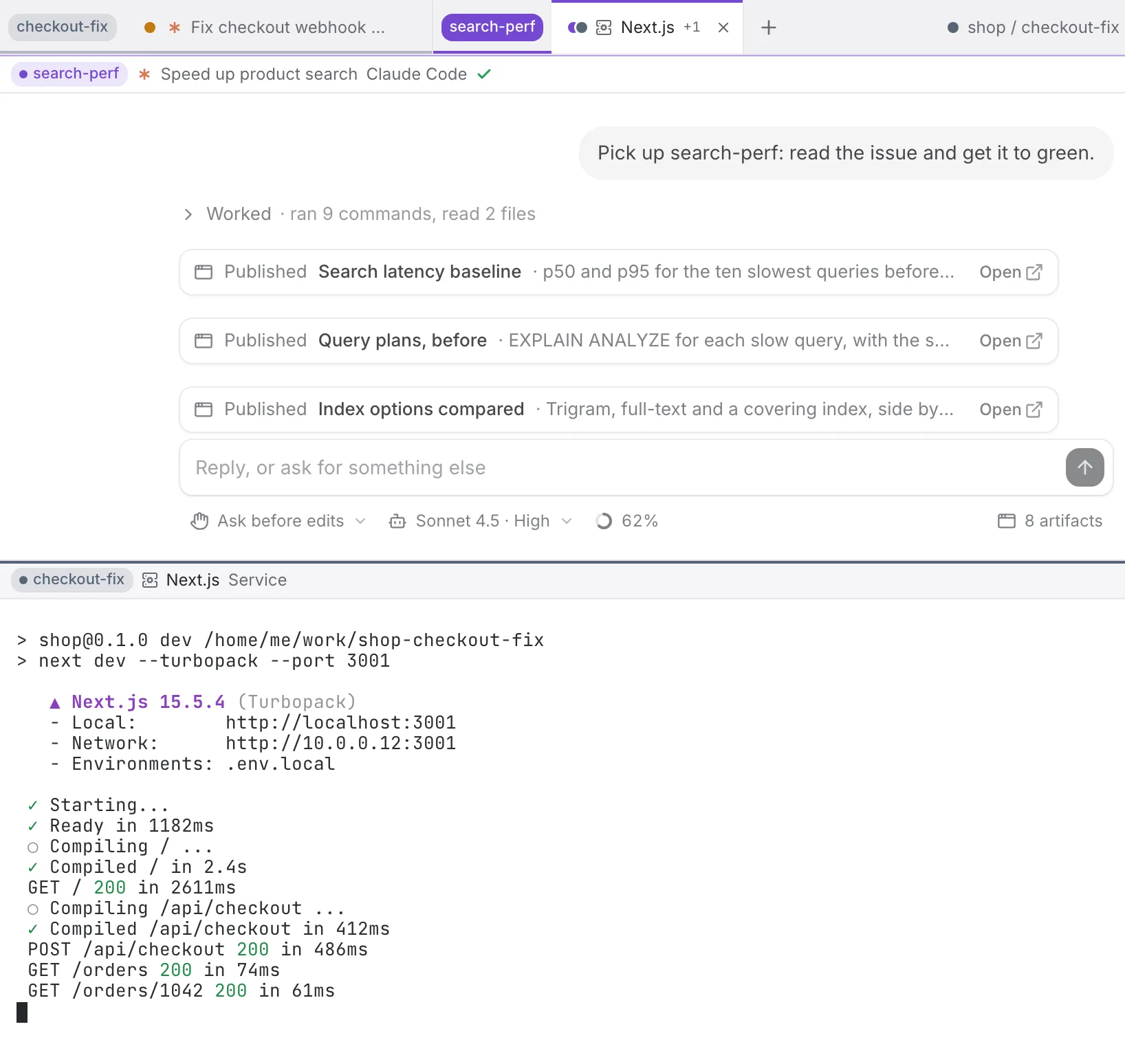
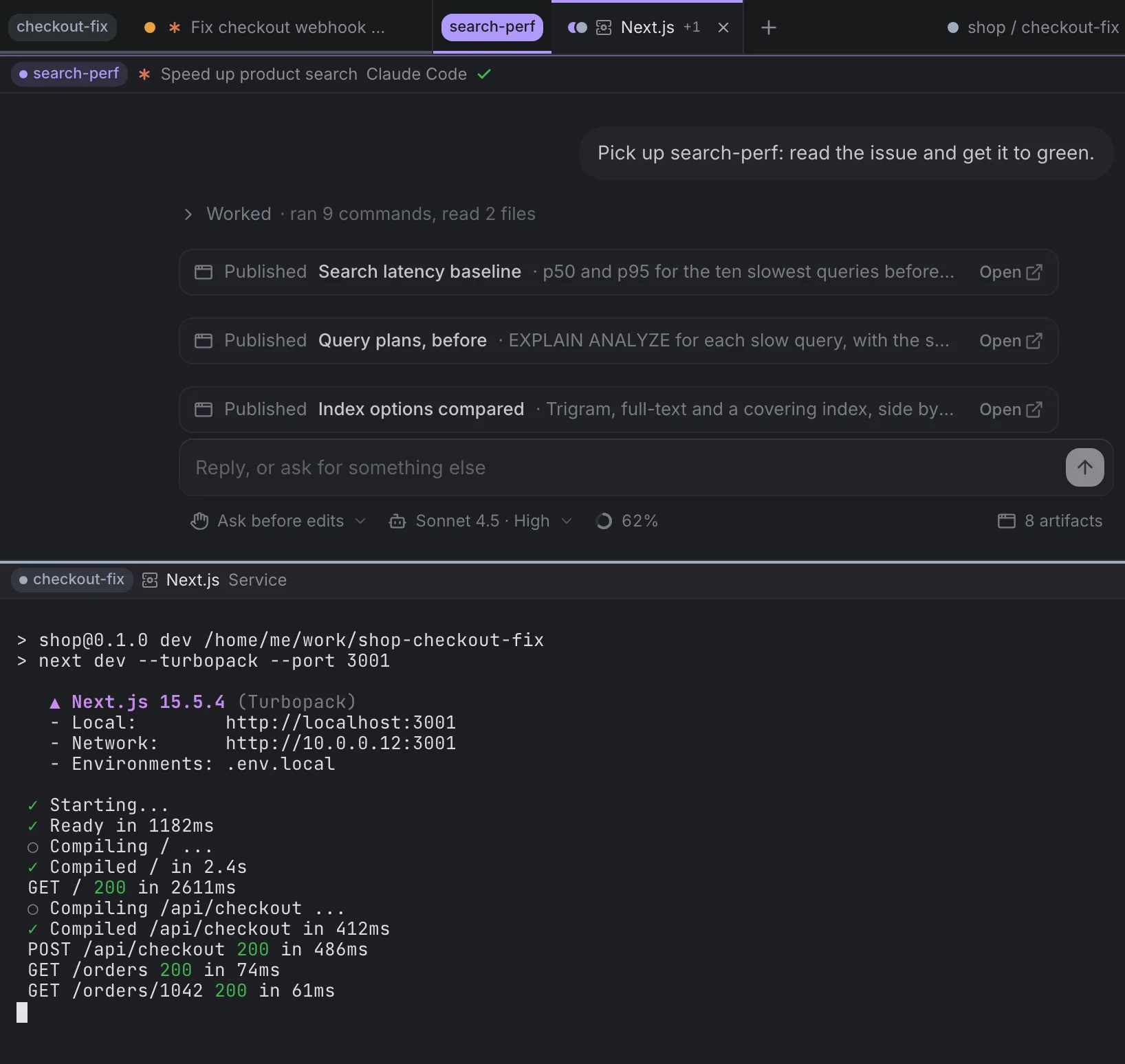
Where things happen. The worktree you are acting in is the focused pane's. The breadcrumb, Run, the + menu, ⌘T, ⌘⇧B, the palette and plugins follow it, so ⌘T in another worktree's pane opens its terminal among that worktree's tabs. Notifications focus an agent where its pane already is.
Compare. A Compare tab puts two worktrees side by side in mirrored
lanes, for "which attempt wins": Chat (their agents' conversations),
Diff (each branch's diff), Preview (each dev server's page),
Terminal (their agents' terminals) and Artifacts (each side's
board). Open one with ⌘⌥C, Compare
with… in a worktree's menu or the strip's +, or Compare with #N on an
attempt in Review's Compare (after Try N ways…). The picker opens the
chats when both worktrees run an agent, else the diffs; ⌥↵ always opens the
diffs. The tab is named checkout-fix ⇄ search-perf and lives in the first
worktree's group. Its bar names both sides in their colours (the one with
the focus is solid; click a side's name to focus it), each agent's state,
and what each branch changed since the default branch (24 files · +2,389 −33). In the middle are the lanes (⌥1–5), the hinge that swaps the sides
(⌘⌥S) and Sync: with Sync on, a page opened on one side opens at the
same path on the other's dev server, with each page's load time in the bar;
scrolling one diff takes the other to the same file; and scrolling one chat
takes the other to the same turn. The breadcrumb, Run and ⌘T follow the side
with the focus. Lanes you leave stay loaded, so coming back reloads nothing,
and closing the tab stops nothing: its panes are views of the two
worktrees. A side whose worktree is archived, or whose box goes offline,
gives the tab to the other side, with a note saying why, Compare with…
to pick another, and a close button.
| Keys | What it does |
|---|---|
| ⌥-click (sidebar) | Add the worktree's tabs as a group |
| ⌘⌥D | Split right with another worktree… |
| ⌘⌥C | Compare with… (in a Compare tab: swap the other side for another worktree) |
| ⌥1–5 | In a Compare tab: the Chat, Diff, Preview, Terminal or Artifacts lane |
| ⌘⌥S | In a Compare tab: swap its sides |
| ⌃⇧⇥ / ⌃⌥⇥ | Previous or next group (⌘1–9 count tabs across the whole strip) |
| ⌘⇧W | Close the group in front: its tabs leave the strip, and the worktree and its agents carry on. With one group, it closes the window |
| ← / → | With a tab or a group's label focused: the next or previous one along the strip (Home, End: the ends); Enter or Space shows a tab |
The group menu. Click a group's label to fold it to its name and tab
count; right-click it to fold, pick its colour, or close it. Colours are
the worktree's own (the same each time, and never two alike on screen) and
stay clear of the colours that mean waiting, working, done and failed; the
worktree's menu in the sidebar has Colour too. Names add the box when
the same repository is open from two boxes (search-perf · gpu).
Narrow windows. Below about 1100px, the groups you are not in fold to their labels, beside the strip, pane chips shrink to their dot and a short name, and a Compare tab's bar drops the diff numbers. Below about 800px, the other groups wait as chips (their dot and name), a Compare tab stacks its two sides, one above the other, and the bar's lanes are icons. In zen there is no strip: the switcher names the focused pane's worktree in its colour, a Compare tab keeps its bar, and ⌘⌥C, ⌥1–5 and the group shortcuts still work.
Colours and names. A worktree's colour never stands alone: its group's
label, a pane's chip and a Compare tab's bar each show a dot and the name,
and a tab with another worktree's pane names it (+ search-perf). Each
theme sets the colours at the lightness its own surfaces need, so their
names read as text on its page and sidebar, and stay clear of the colours
that mean running, waiting, done and failed. Screen readers hear each tab,
group and pane with its worktree ("Claude Code, checkout-fix, with
search-perf"), and a group's label says whether it is folded, in front, or
on an offline box.
When a worktree goes. Archiving or removing a worktree takes its group off the strip. A pane of it left in another worktree's tab says so, with a Close button. While its box is offline the group's label dims, and Run says why it can't start anything. The strip's groups, folds and colours are remembered with the rest of the layout.